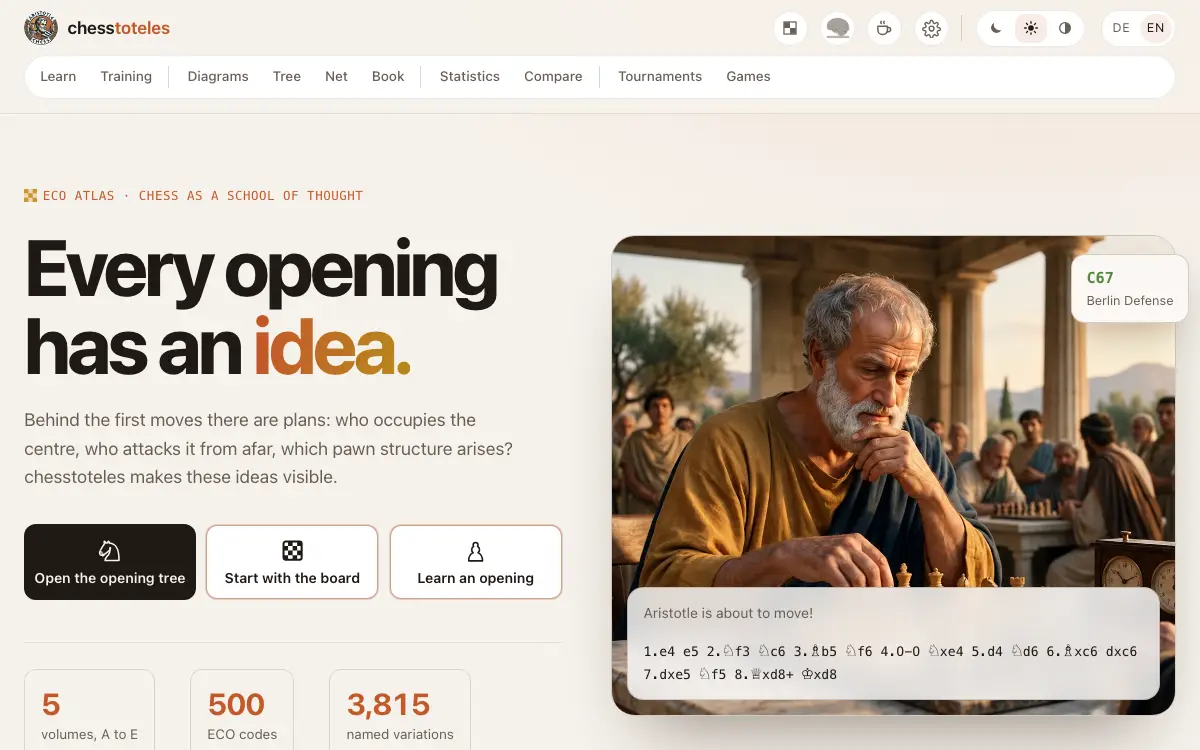
Welcome to chesstoteles
chesstoteles is a portal for chess openings: you learn them, train them and look up how the greats played them.
- No account, no sign-in: everything runs in your browser.
- Your progress and your own files stay on your device. None of it is stored on the server.
- The bar at the top leads to every part. On a phone you find it behind the menu button.
Learn
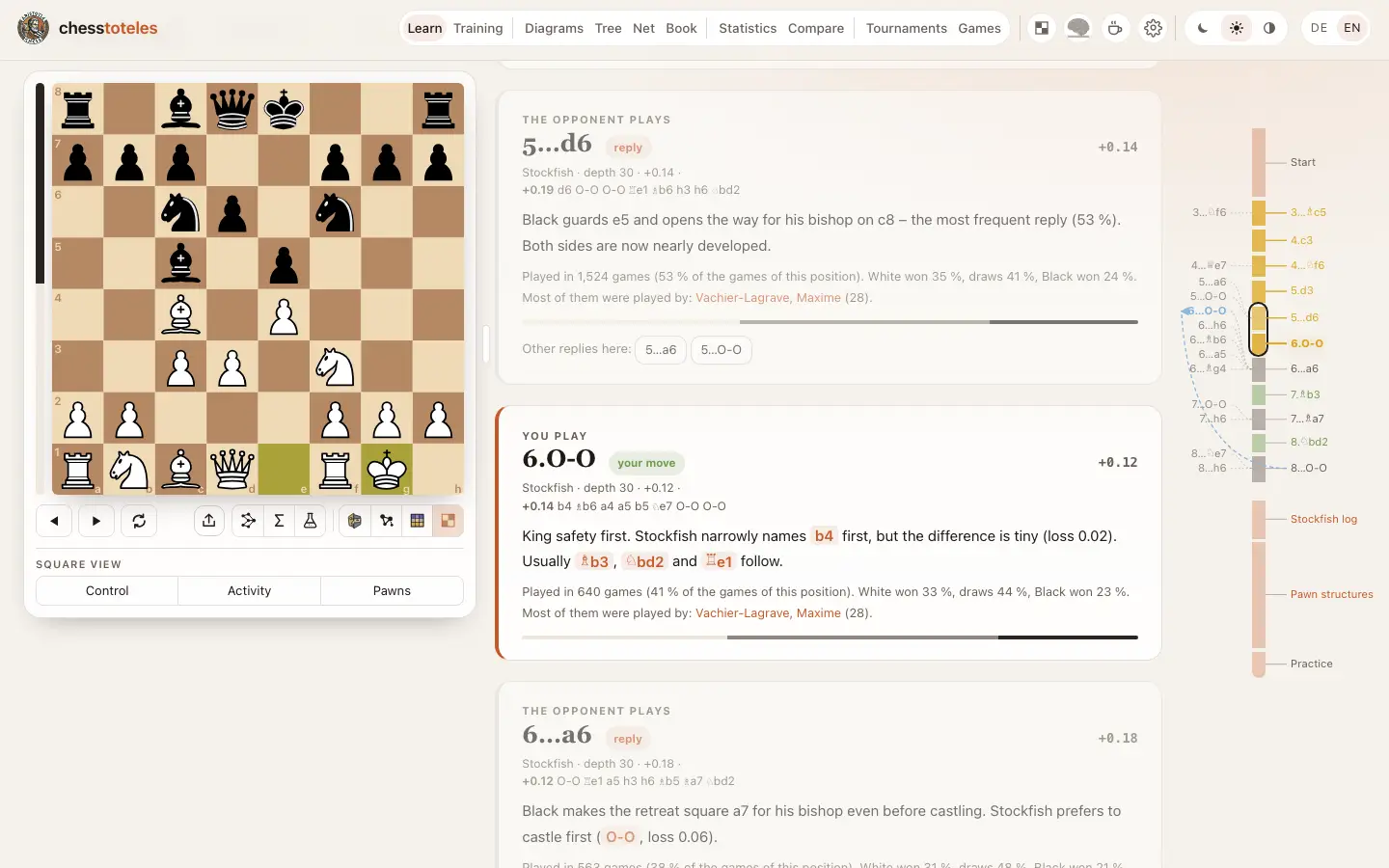
Courses on single openings, from the games of strong players and checked with Stockfish.
- Pick a course. You can filter by White and Black.
- On the tab “Course on the board” you go through a line move by move. Under “Variations” you choose another line.
- Depending on the course there are also model games, all lines at a glance, pawn structures and the whole text of the course.
- With the buttons of a course you can download it as PDF and PGN, where available.
- “Your progress” shows which lines you know and which are due today.
Train
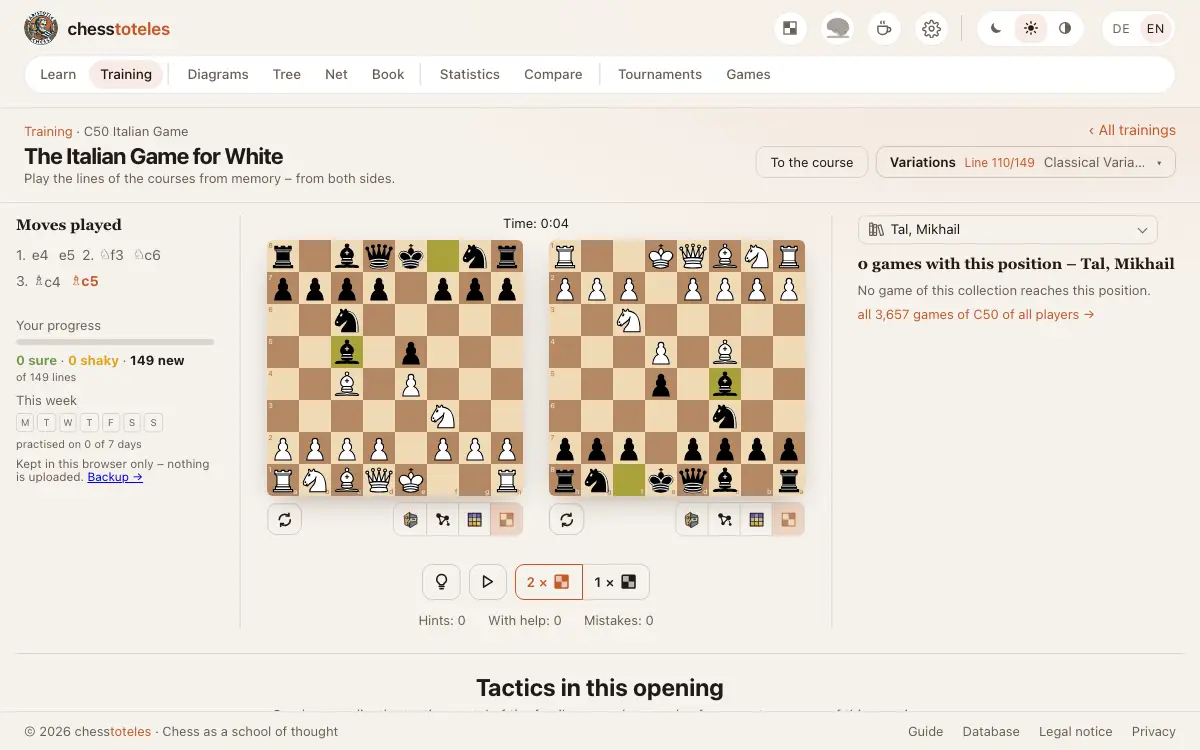
Here you play the lines of a course from memory.
- You make your moves, the page answers with the opponent's.
- If you get stuck, a hint helps, or the page plays the move. That then counts as “with help”.
- Lines that are due come first. “Next line” takes you on.
- Below the lines, “Tactics in this opening” leads to the puzzles of this opening on chessepolis, the tactics portal of the family.
- The “Questions to solve” come from the model games of the course. You move on the board, and your learning progress remembers what you have solved.
Diagrams, tree and net
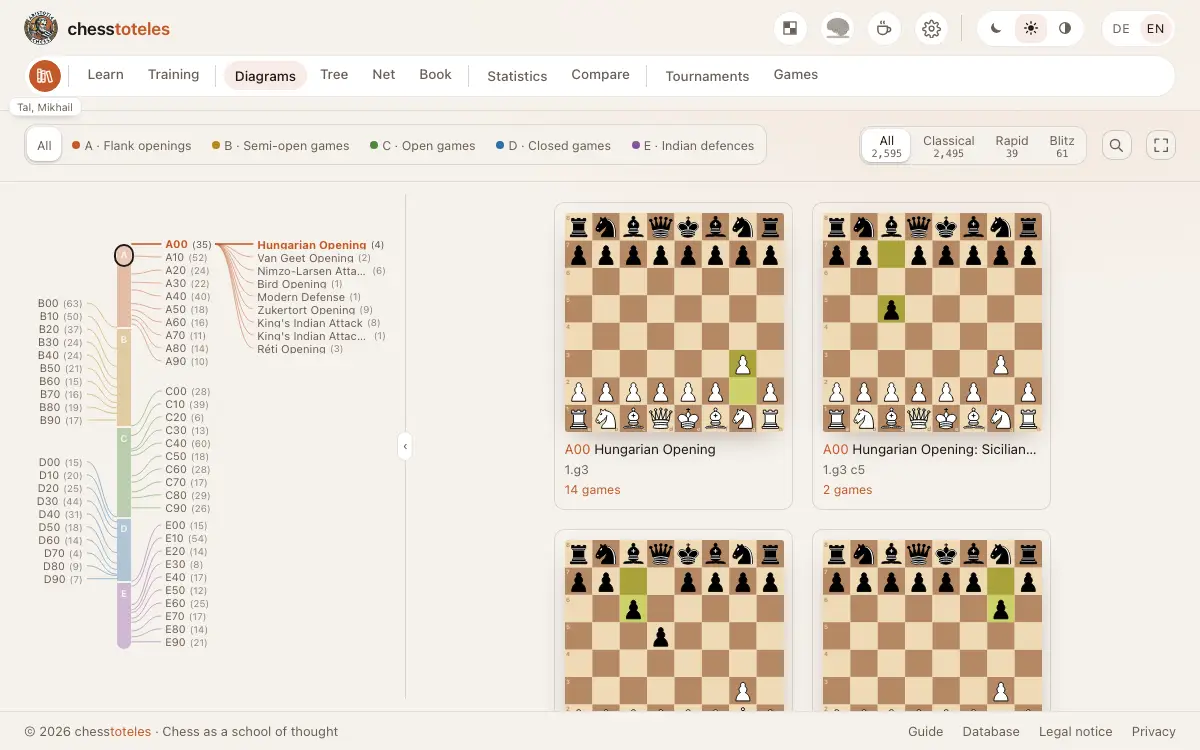
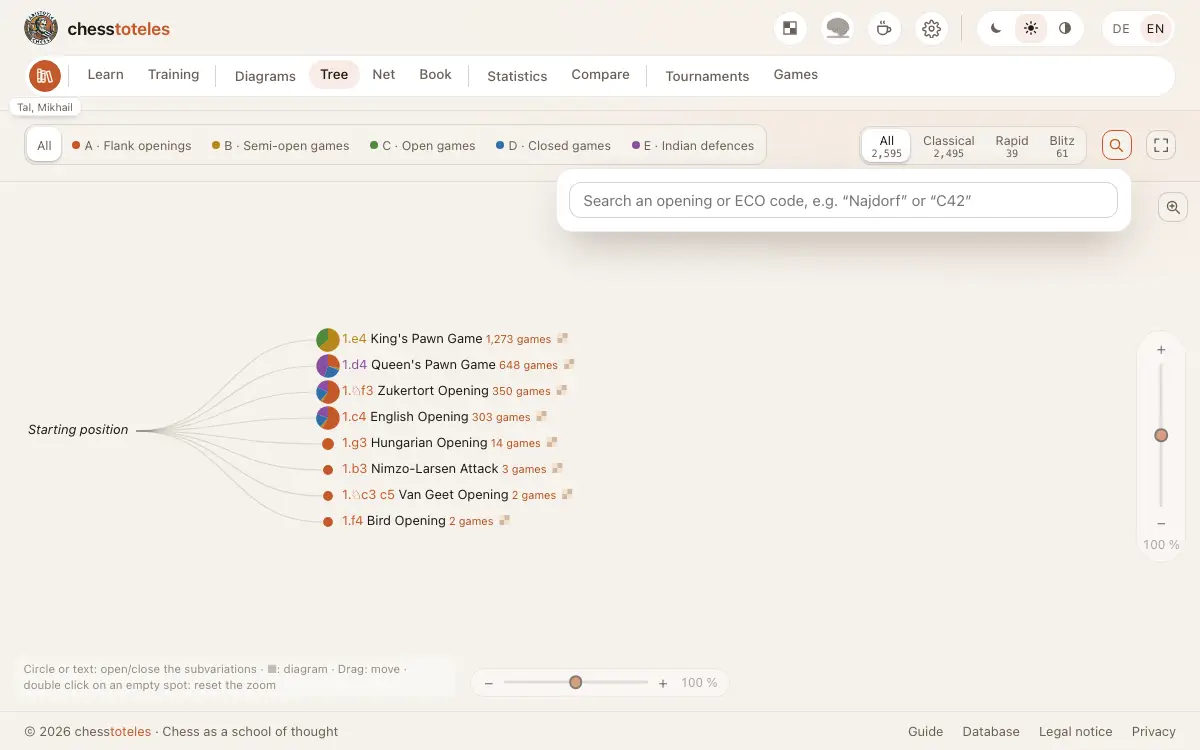
Three views of the same openings, ordered by ECO code.
- Diagrams show every variation as a board. A click opens board and moves.
- In the tree you fold the openings open and shut, down to the variation you are after.
- The net connects volumes, groups, openings and first moves. A click on a node holds its lines.
- Everywhere you filter by the volumes A to E and search for names or ECO codes.
- Zoom: in the tree and the net two sliders stretch the graphic in width and in height. Dragging the graphic moves it, a double click on an empty spot resets everything. The magnifier shows everything under the mouse in its original size.
Book
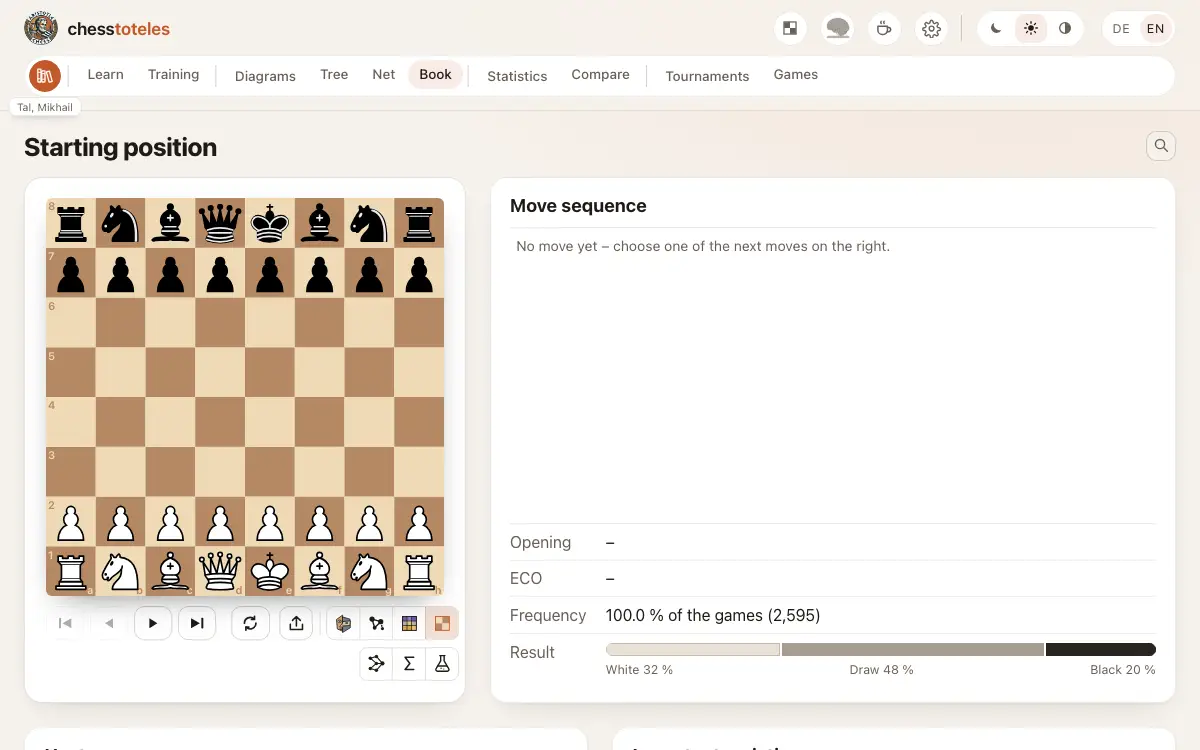
The opening book shows you what was played in each position.
- Move on the board. Beside it stand the next moves and the named variations.
- The tabs show the tree of variations, the variations, the games, statistics, and ideas and plans.
Choosing the collection of games
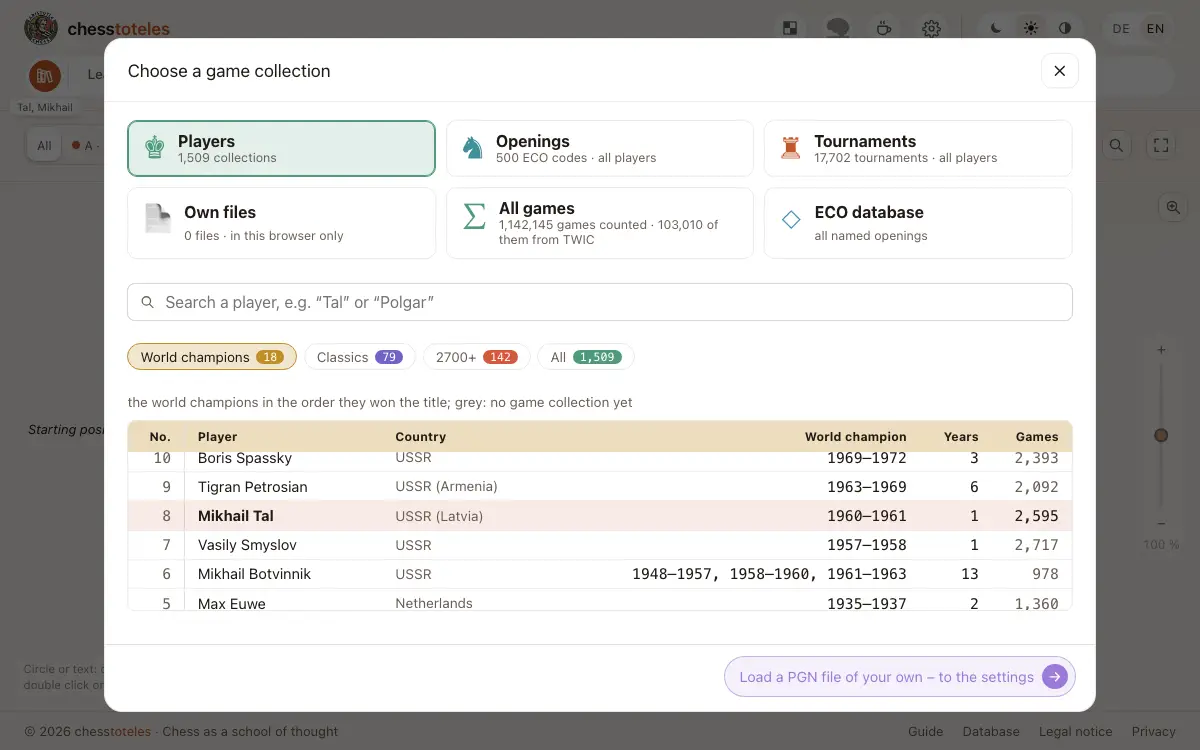
Many pages can show the games of a collection instead of the ECO openings.
- The books icon in the bar opens the choice: players, openings, tournaments or your own files.
- Your choice stays when you change the page.
- On a computer the name of the collection stands small below the icon. On a phone the choice is at the very top of the menu.
- Time control: when a collection has games of different kinds, you choose between All, Classical, Rapid and Blitz. The choice applies on every page until you change it. When a collection has no game of that kind, the page shows all of its games.
Games and tournaments
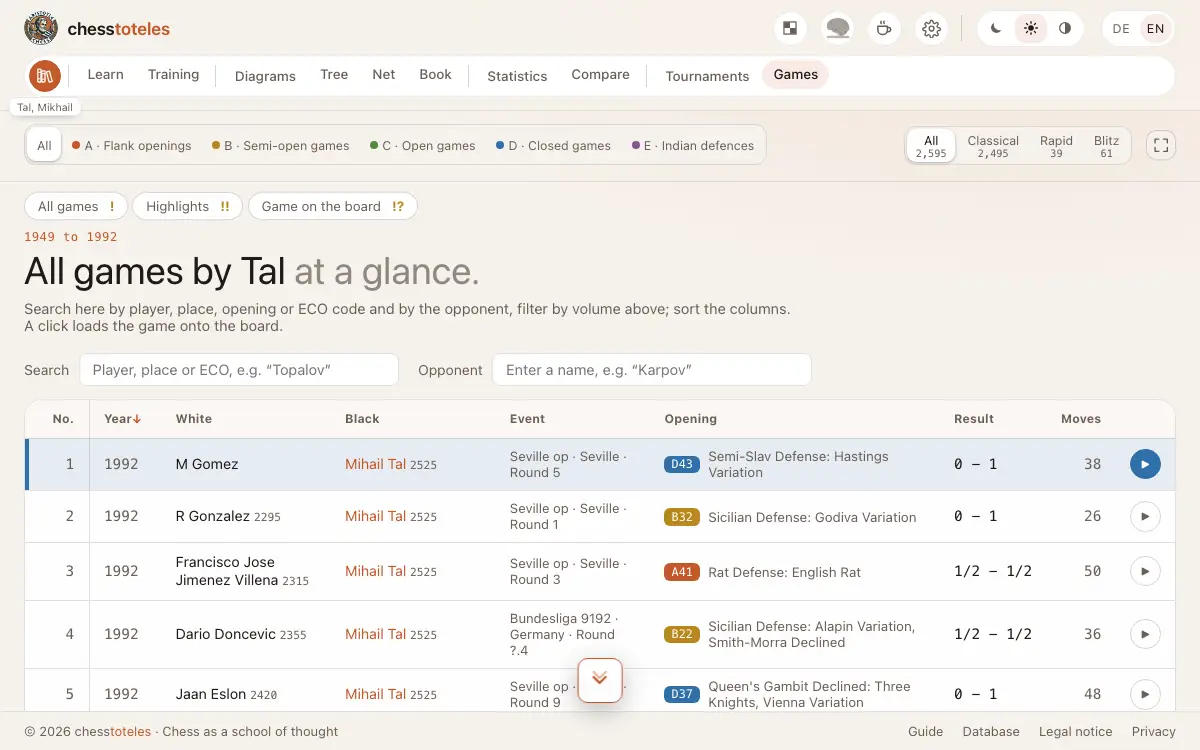
Find games and play through them.
- Under “Games” you choose a collection, and search and sort its games in the list.
- You go through a game with the buttons below the board, or let it play.
- Under “Tournaments” you filter, for example, by kind or era. A tournament shows its standings, cross table and games.
- Beside the games of the collections stands their ID. A click on it copies the short link. Type an ID into the search field and press Enter, and the game opens, even when it lies in another collection.
Statistics and comparing
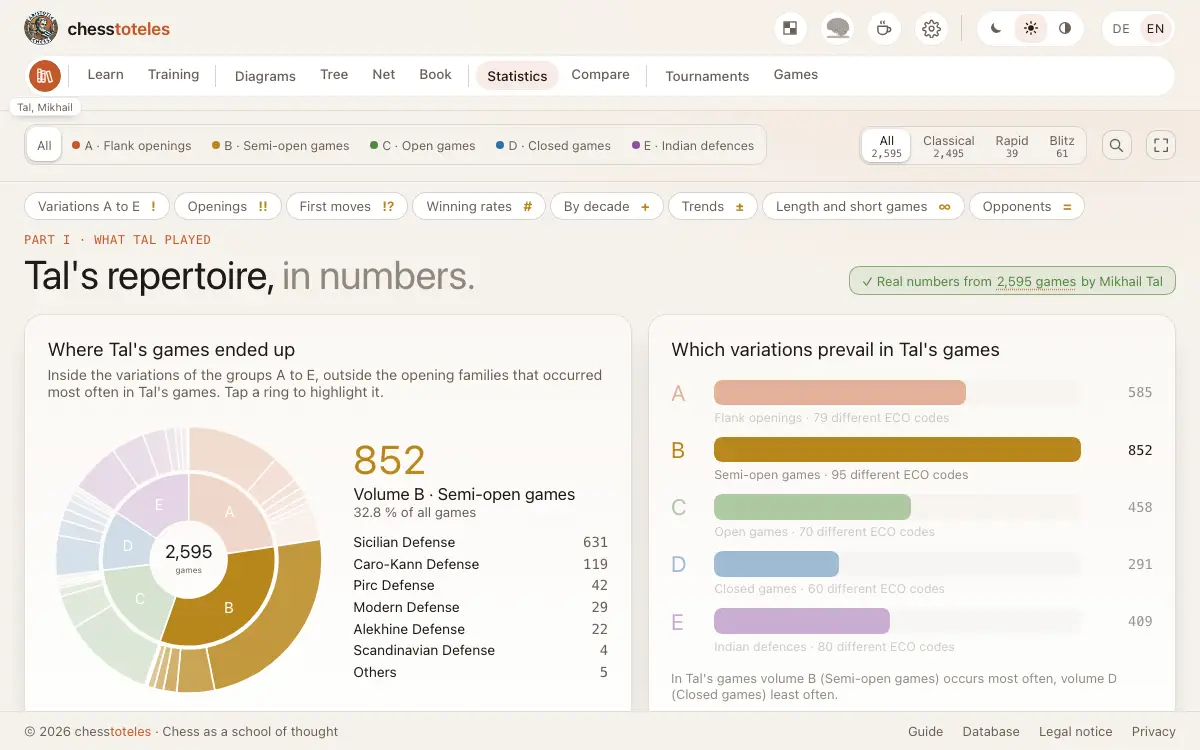
What the numbers tell about openings and players.
- The statistics show, among other things, winning rates and trends by decade. Some parts only exist when you have chosen a player.
- Under “Compare” you put two players side by side: their games against each other, their common openings and a move tree with a board.
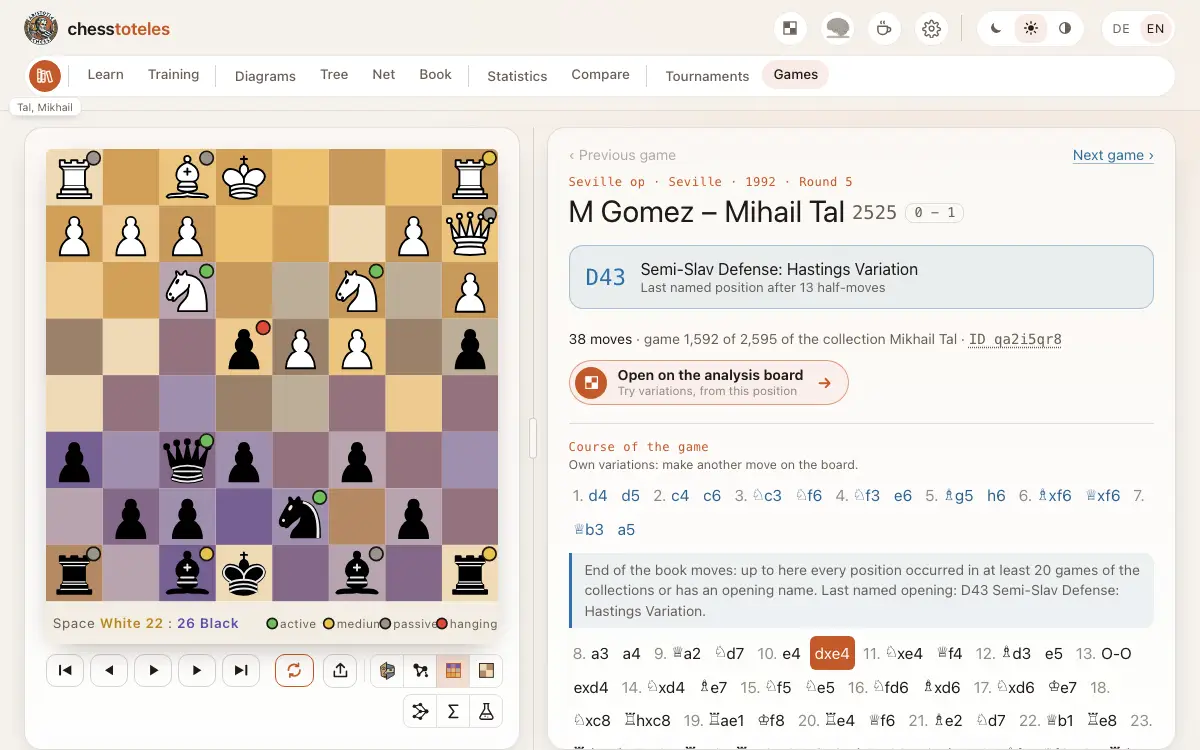
Seeing the board differently
Below many boards, for example in the book, on the games page and when comparing, small buttons show the same position in another way.
- Structure formula: the position as a formula, with its protections and attacks.
- Color view: control of the squares, space and activity of the pieces in colors.
- Art view: the paths of the pieces as a picture in the style of cubism.
- The button with the board brings back the usual chessboard. The view applies to every board of the page; the structure formula and the color view stay chosen on your next visit too.
- Mathematical diagram: a formula of material, mobility and protections, and its course over the move sequence. If you like, Stockfish computes along.
- Reaction scheme: the opening as a chemical reaction. A stage ends after every exchange and after castling; the arrows carry the moves and the captured pieces.
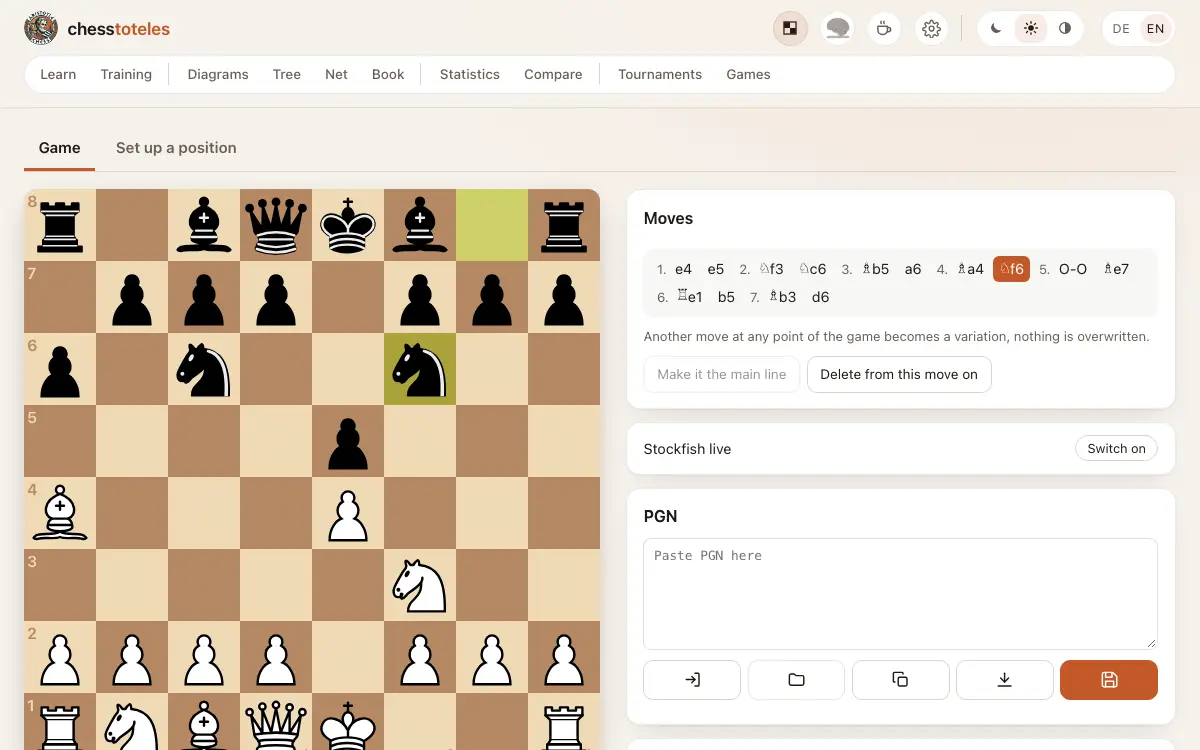
Analysis board
Your free board, reached with the round button with the small board in the bar.
- Enter a game. Another move at some point becomes a variation, nothing is overwritten.
- Under “Set up a position” you set up any position and analyse from there.
- You can paste, load, copy and save PGN. Comments and annotation signs of a PGN are not taken over.
- Switch on Stockfish when you want an evaluation. It computes in your browser. On a phone Stockfish exists only here, in its small version.
- “Save” keeps the game with its details in this browser. Then it is listed under My files in the settings.
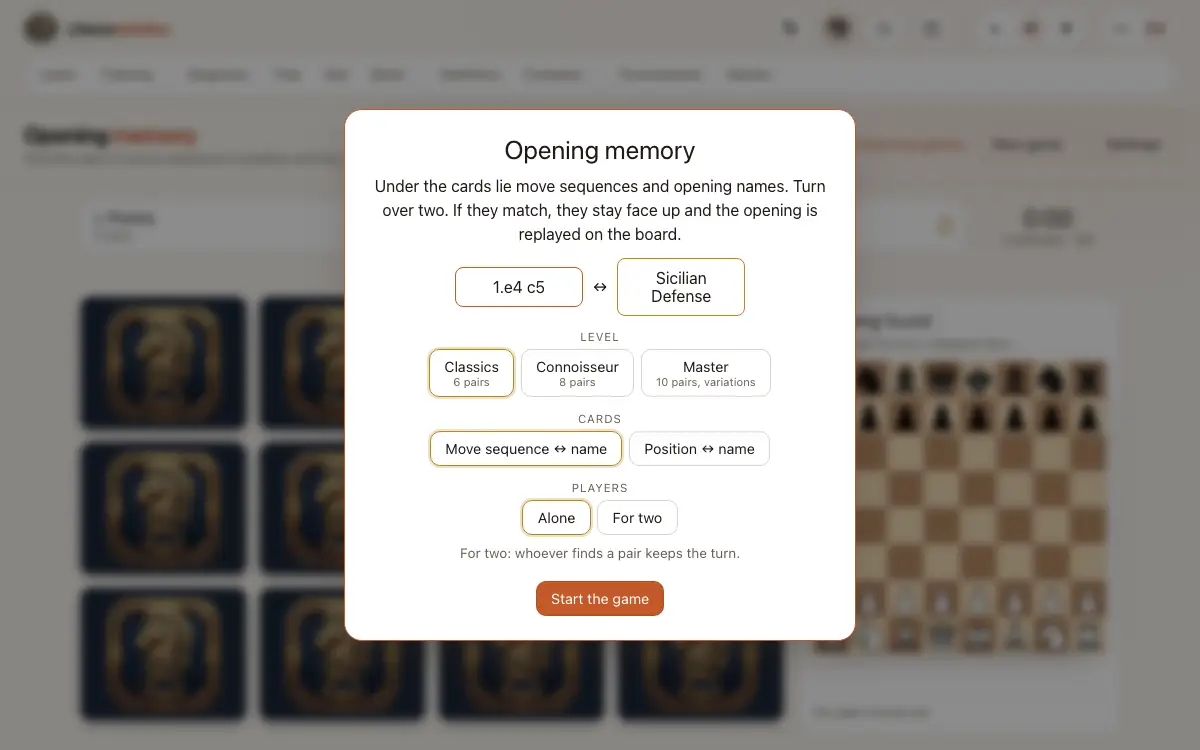
Learning games
Practise openings playfully, with the button with the brain in the bar.
- In the opening memory you uncover pairs, alone or with two players and at several levels.
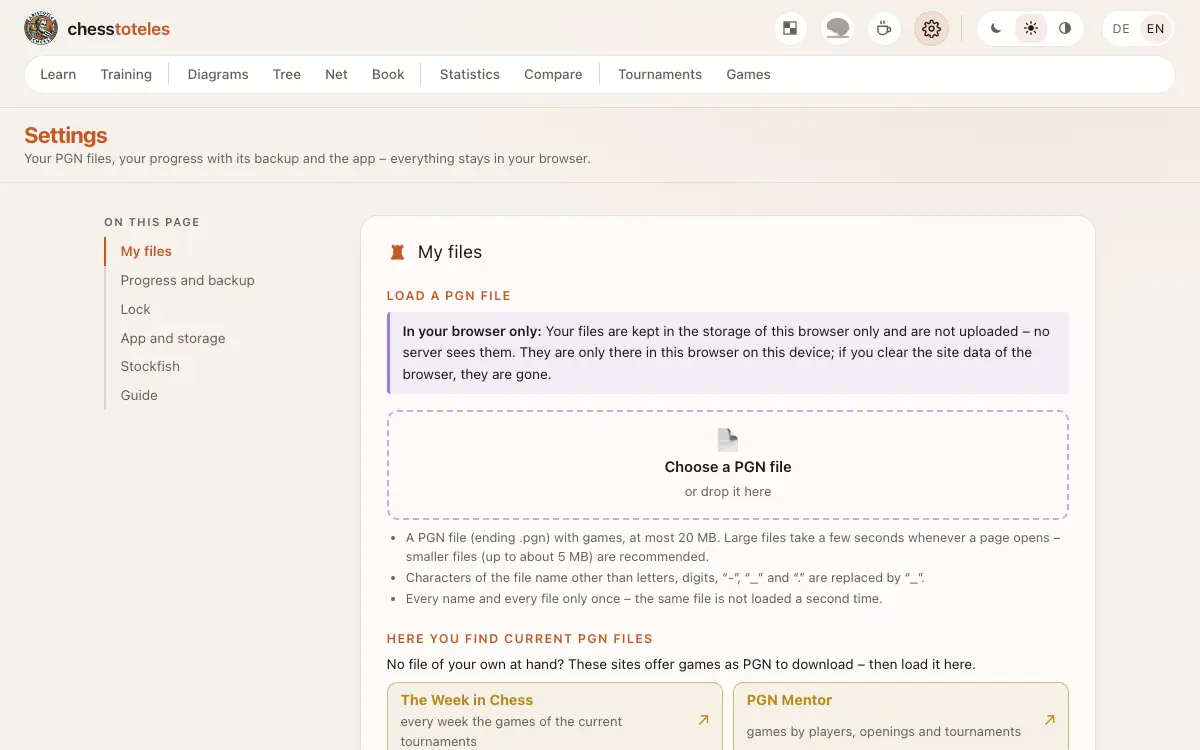
Settings
The gear in the bar leads to everything that concerns only you.
- My PGN: load your own PGN files of up to 20 MB. They stay in your browser and then appear in the collection choice.
- Learning progress and backup: save your state as a file, or take it to another device by link and QR code.
- Lock: a password encrypts progress and your own files in this browser. A forgotten password cannot be recovered.
- App and storage: here you find how to install chesstoteles as an app.
- Stockfish: choose the small or the full version.
Small helpers
A few things that save you time wherever they exist.
- Search: the magnifier or the key / finds openings by name or ECO code.
- Focus: the key F hides the bar, head and foot, Esc brings them back. Not on a phone.
- Moves: ← and → go one move back or forward on many boards. On the games page and the analysis board Home and End jump to the start and the end.
- Share: the export menu of a board copies PGN and FEN and shares the position as a picture, link or QR code.
- You choose the design and language in the bar, on a phone at the bottom of the menu.
- Board size: on a computer you drag the line beside the board on the games page and in the courses. A double click on it brings back the usual size.
- Jump bar: on the diagrams and the overviews of learning and training the bar on the left jumps to every part of the page. The vertical line beside it hides its labels and shows them again.
On a phone
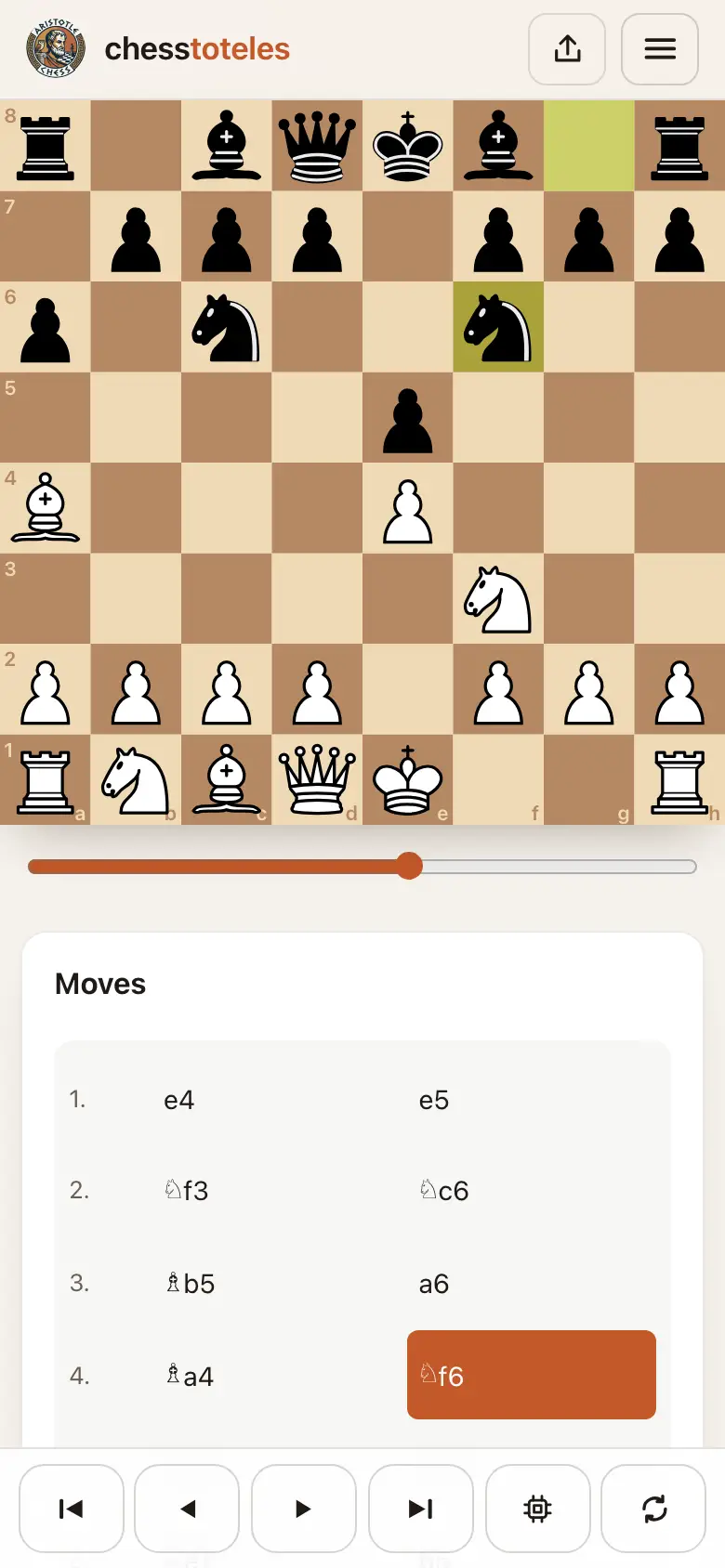
On a phone boards run from edge to edge, so that all the room is used.
- On the game pages and the analysis board the board stays at the top, and scrolling through the table of moves plays them. The slider below the board leads through the whole game.
- The buttons for stepping are at the bottom, where your thumb is.
- Swipe over the board: to the left one move on, to the right one back.
That's all
Enjoy your openings!
- You can find this guide at any time in the settings and at the very foot of the page.